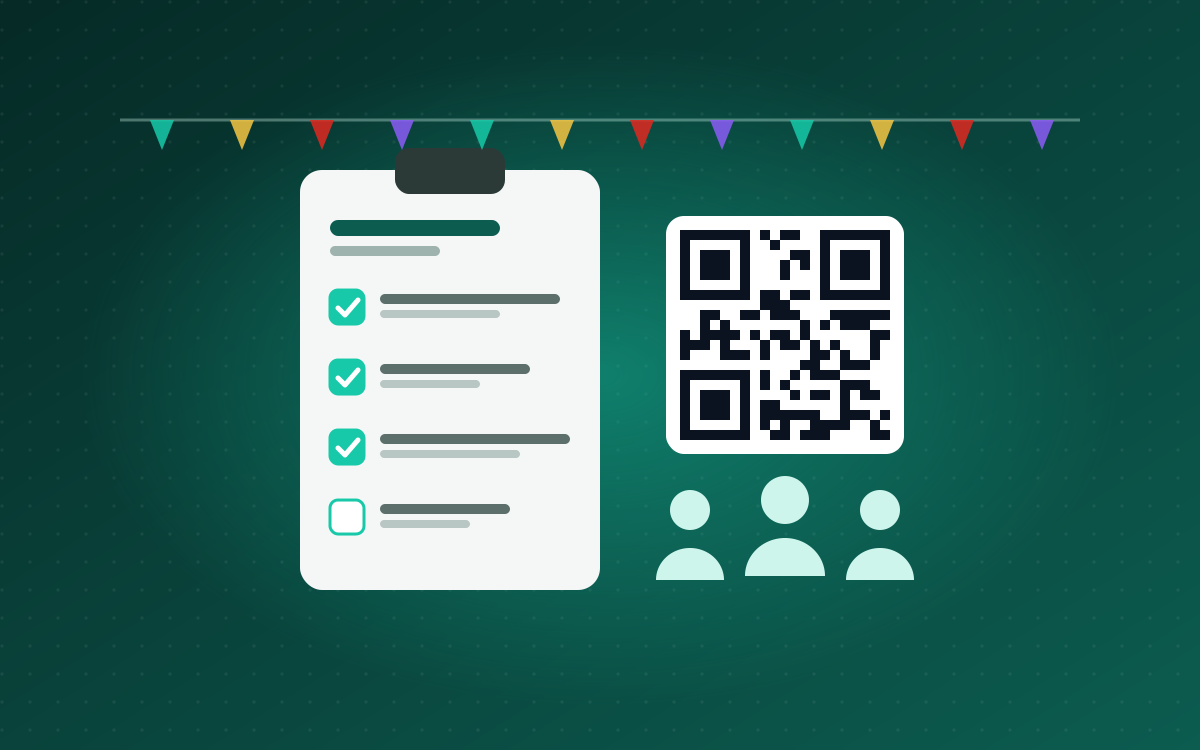
Community Event Sign-ups
A registration form in three languages, a printable QR poster and an automatic report after the event, set up in minutes for each new community event.
The problem: residents’ committees run community events all year. Every time, someone builds a sign-up form by hand, makes a poster, then copies the responses into a report afterwards. That’s half a day of work, and the numbers end up scattered across phones and spreadsheets.
What it does:
- A ready-made sign-up form in English, Chinese and Malay. Residents give their name, phone number, address and how many people are coming.
- A printable QR poster: an A4 sheet with a QR code that opens the form. Stick it on the notice board or share it in the residents’ chat group.
- A report after the event, done automatically. The morning after, a copy of all the registrations and a short summary (how many households, how many people in total) are saved into the event’s folder, and the links arrive by email.
How it works: one Google Apps Script builds the form, its responses sheet and the QR poster (a Google Doc) in one go. A one-off timer runs the export the day after the event, then removes itself, so nothing is left running.
Make your own
Free. All you need is a Google account (Gmail) and a computer. It takes about five minutes, and everything is created in your own Google Drive. Nobody else sees your residents’ details.
1. Fill in your event and copy the script.
2. Open script.new in a new tab. Sign in with the Google account that should own the form.
3. Replace what’s there. Click inside the code area, press Ctrl+A (select all), then Ctrl+V (paste your script). Press Ctrl+S to save, and give it any name.
4. Click Run (the ▶ button at the top). Google asks for permission:
- Click Review permissions and choose your account.
- You’ll see “Google hasn’t verified this app”. That’s normal, because the app is your own script. Click Advanced, then Go to (your project name).
- Click Allow.
5. Check your email. Within a minute you get one message with everything:
- the sign-up link to share in your WhatsApp group;
- the QR poster (open it, then File > Print);
- the answers sheet, where you can watch registrations come in.
6. Do nothing after the event. At 9am the next morning the report arrives by email, and an Excel copy is saved in the event folder.
Next event: fill in the boxes again, copy, and start from step 2 with a new script.new. Each event gets its own form, folder and report.
Something went wrong?
- “Fill in EVENT_NAME…”: you pasted the script before filling in the boxes. Fill them in, copy again, and paste over it.
- Want the report early? In the script, pick sendReport from the drop-down next to Run, then click Run.